
Contact Info
Configure how your Yelp and Thumbtack Auto Responder handles customer phone numbers and email addresses. Set up confirmation messages and automatic integration triggers.
Global or Custom Settings: Use consistent contact handling across all sources, or customize responses for each platform (Yelp, Thumbtack, etc.).
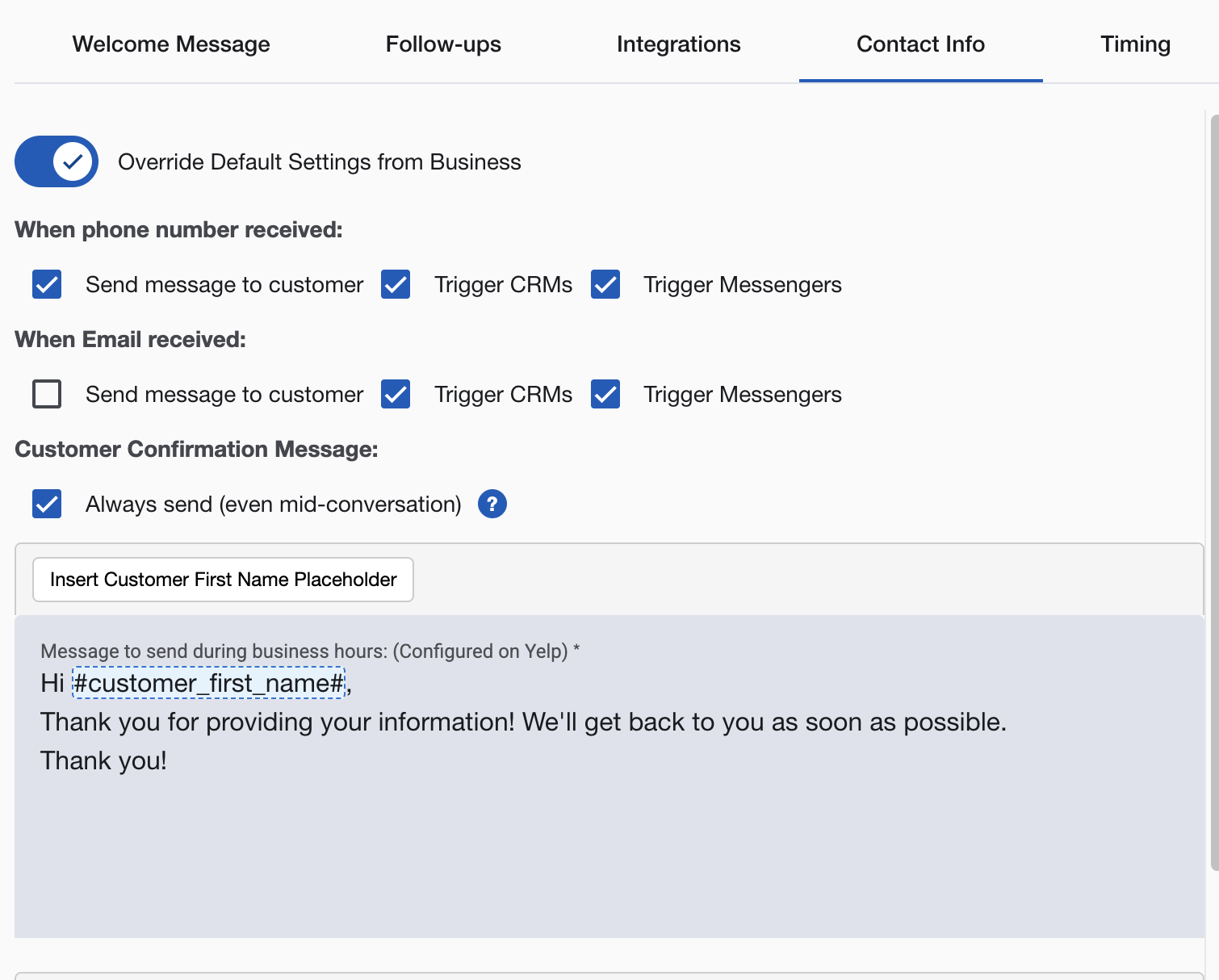
How Contact Info Processing Works
When customers share contact details, your yelp automatic follow-ups system can:
- Send confirmation messages to customers
- Trigger CRM and notification integrations automatically
- Use different responses for business hours vs. after hours
- Handle phone numbers and email addresses separately
Phone Number Configuration
When Phone Number Received
When a customer shares their phone number, you can:
- Send an acknowledgment message confirming you got it
- Set expectations for when you’ll call back
- Automatically sync the number to your CRM
- Notify your team via SMS, Slack, or WhatsApp
- Create tasks or deals in connected business systems
Example confirmation: “Thanks for your phone number! I’ll call you within 2 hours to discuss your project details.”
Email Address Configuration
When Email Received
When a customer shares their email, you can:
- Acknowledge that you received it
- Provide next steps or additional information
- Push the email to all connected systems
- Add them to email marketing sequences
- Create contact records in CRM platforms
Example confirmation: “Got your email address! I’ll send you a detailed estimate within 24 hours.”
Advanced Settings
Always Send Confirmation
Enabled: Send confirmation every time contact info is shared, even during ongoing conversations. Disabled: Only send confirmation if business hasn’t personally responded yet.
Use Case: Enable for businesses requiring contact confirmation documentation. Disable to avoid repetitive messaging.
Business Hours vs. After Hours
Business Hours Message: Acknowledge receipt and give a specific callback window.
After Hours Message: Let them know you got it and will follow up next business day.
Example After Hours Message: “Thanks for your phone number! I’ll call you first thing tomorrow morning to discuss your project.”
What Happens With Contact Info
When a customer shares their contact details, the system can:
- Create a CRM contact with the full conversation history
- Alert your team so someone can follow up quickly
- Route the lead to the right team member
- Trigger follow-up workflows automatically
Best Practices
Message Content
- Match your usual business tone
- Set realistic callback timing (“within 2 hours”, not “immediately”)
- Give them a clear next step
Response Timing
- Business hours - Promise callback within 2-4 hours
- After hours - Set next business day expectations
- Emergency services - Provide immediate contact options
Testing Your Setup
- Send test messages with phone numbers and email addresses
- Check that contact info shows up in your CRM
- Make sure team notifications reach the right people
- Review your confirmation messages for tone and accuracy
Getting Started
- Enable contact info processing - Turn on confirmation messages
- Connect CRM integration - Sync contact data automatically
- Set up team notifications - Alert team to qualified leads
- Monitor performance - Track contact collection rates
Questions about contact info configuration? Email support@nzleads.com or use in-app chat for assistance.