
Instagram Auto Reply: How to Set It Up Three Ways
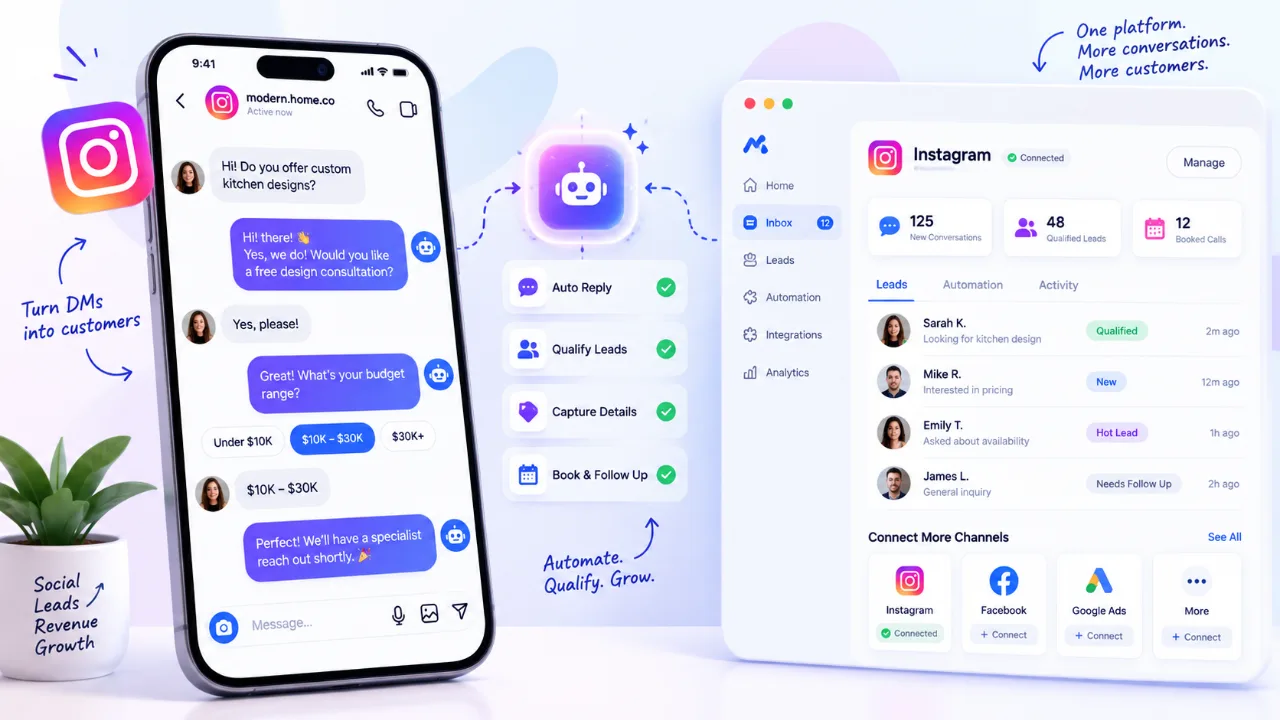
An Instagram auto reply is a message your professional account sends automatically when someone DMs you, so nobody waits in silence. You can set one up three ways: automated answers to frequently asked questions in the Instagram app, inbox automations in Meta Business Suite, or a connected tool that reads each message and answers it. Personal accounts cannot use any of them.
The first two are built into Instagram and Meta Business Suite and send text you write in advance. They are enough for a greeting, an away notice and answers to a handful of fixed questions. If your DMs are customers asking what a job costs, whether you cover their area and when you can come, a fixed message only acknowledges them. That is the gap an AI auto reply fills, and it is what the Instagram auto responder in NZ Leads is built for.
This guide walks through all three options with the exact menus, the limits Meta does not put on the setup screen, and what a first reply should say.
The three Instagram auto reply options at a glance
| FAQ responses in the Instagram app | Meta Business Suite automations | AI auto reply (connected tool) | |
|---|---|---|---|
| Where you set it up | Instagram app, Messages, Tools | Meta Business Suite, Inbox, Automations | The tool’s dashboard, after you authorize it through Meta |
| What triggers a reply | The person taps one of up to four suggested questions | A first message, your away hours, an exact keyword, or a comment with a keyword | Every new message |
| What the reply says | The fixed answer you wrote for that question | The fixed text you wrote for that template or keyword | An answer written for that message from your business details |
| Typed questions in the customer’s own words | Not answered | Answered only on an exact keyword match | Answered |
| Qualifying questions, follow-ups, booking | Not included | Not part of these templates | Included when you turn them on |
| Best for | A few common questions with one answer each | Greetings, after-hours notices, simple keyword answers | Businesses whose DMs are sales inquiries |
What your Instagram account needs before any auto reply works
Check these three things first. Most failed setups come down to one of them.
- A professional account. Instagram’s frequently asked questions feature is only available for business and creator accounts. If your account is still personal, switch it to a professional account in the Instagram app.
- Messages access in Meta Business Suite. When you connect Instagram to Meta Business Suite, Meta asks whether to allow access to Instagram messages. Leave it on, or the inbox automations have nothing to work with.
- A linked Facebook Page for outside tools. Instagram only lets third-party tools manage DMs on business or creator accounts that are linked to a Facebook Page. If a tool cannot find your account during setup, link the Page in the Instagram app and try again.
Option 1: Automated responses to FAQs in the Instagram app
This is the simplest Instagram auto reply. You add up to four questions that appear when someone starts a chat with your account, and each question can carry an automated response. When a person taps a question, they get your prepared answer right away.
How to set up FAQ auto replies
- Open Instagram and tap Messages at the bottom.
- Open the menu at the top of your messages and tap Tools.
- Under Tools, tap Frequently asked questions.
- Turn on the toggle next to Show Questions.
- Under Questions, tap Add Question, enter the question and its automated response, and tap Save.
Repeat step 5 for up to four questions. You can edit or delete them at any time.
What FAQ responses will not do
They only answer the four questions you wrote, and only when someone taps one. A customer who types “how much for a move-out clean on a two-bedroom?” gets no automatic answer at all.
There is a second catch. When someone taps one of your questions, their message goes to your message requests, and you have to accept the request before you can reply yourself. If nobody checks requests after hours, the conversation stops at your automated answer.
If you have not set up your own questions, Instagram may show four suggested questions on a business account instead. Review them, because generic retail questions about orders and returns look odd on a plumber’s profile.
Write the four questions the way customers ask them
Pick the questions you answer most often and phrase them in the customer’s words, then give an answer that moves the conversation forward. For a cleaning business, that might look like this:
- Question: Do you clean in my area? Answer: We clean homes across [your service area]. Send your ZIP code and the type of clean you need, and we will reply with a price range.
- Question: Can I book this week? Answer: Most weeks we have openings. Tell us your preferred day and the size of the home, and we will confirm a time.
Option 2: Meta Business Suite inbox automations
Meta Business Suite gives one inbox for Facebook, Messenger, Instagram and WhatsApp, and its automations reply for you across those channels. The templates available on desktop are:
- Auto reply (also called instant reply): a greeting when someone messages you for the first time.
- Away message: a reply when you are not available.
- Frequently asked questions: suggested questions with prepared answers.
- Location, contact information and hours: replies to people who ask for those details.
- Custom keywords: a reply when a message contains specific keywords.
- Comment to message: a direct message to people whose comment on your post contains specific keywords or phrases.
- Identify unanswered messages and assign admins: inbox housekeeping rather than replies.
How to turn on an automation on desktop
- Go to Inbox in Meta Business Suite and click Automations.
- Click Create automation in the top right.
- Choose the template you want and follow the on-screen steps.
- Check that the automation shows as on under Status. It can take a few minutes to appear.
To build your own rule instead of a template, click Start from scratch, tick the Instagram channel, choose a condition such as “New message received”, and add the action Send message. Meta sends custom automations before other automations.
How keyword automations behave
Keyword automations are where most setups go wrong, because the rules are strict:
- They are only available in Meta Business Suite on desktop, not in the mobile app.
- Each automation takes up to 5 keywords or phrases, and the same keyword can only be used in one automation.
- Keywords are case-sensitive and must match exactly. “Price” and “price” are different keywords, and “pricing” does not match “price”.
- Meta holds a keyword reply for 15 minutes and sends it only if nobody on your team has answered by then.
- If a template automation such as your away message is also triggered, Meta sends the template reply and skips the keyword reply.
In practice, list every spelling your customers use (“price”, “Price”, “pricing”, “quote”, “how much”) and keep one topic per automation. Test each keyword from a second account before you rely on it.
Comment to message for posts and Reels
Comment to message turns a public comment into a private conversation. Ask people to comment a word such as QUOTE on a post, set that word as the trigger, and Meta sends them a direct message with your price sheet or booking link. Like the other templates, the message is the same for everyone who comments.
One more setting to know: if you turn on Meta’s own business AI agent, Meta pauses your existing automations, including away messages and instant replies.
Option 3: An AI auto reply that answers the actual message
An AI auto reply works differently from both built-in options. Instead of matching a tap or a keyword to fixed text, it reads what the customer wrote and answers that message using the business details you give it: your services, price ranges, service area and hours.
Here is what that looks like in NZ Leads once Instagram is connected:
- The first reply goes out in under 2 seconds, at 2 p.m. or 2 a.m., and it answers the question the customer actually asked.
- It asks your qualifying questions, such as the service needed, the location and the timing, so you get the job details without typing them yourself.
- It offers appointment times when scheduling is on. The calendar checks the availability you configured and follows your scheduling instructions.
- It follows up if the customer goes quiet, on a schedule you choose, and stops the moment they reply or book.
- It keeps the full conversation on your Leads page and can create or update the customer record in a connected CRM.
Instagram does not share a customer’s phone number or email, so the AI asks for them in the conversation. The lead’s name is their Instagram handle until they tell you more.
How to connect Instagram to NZ Leads
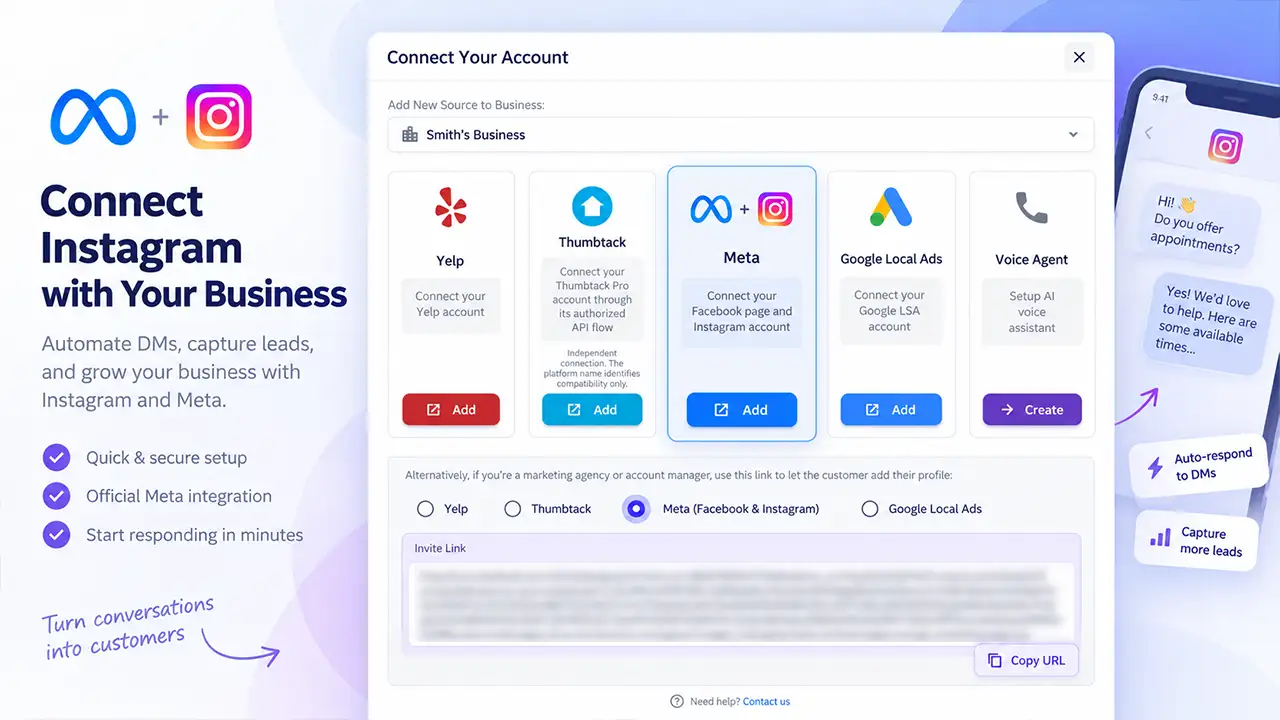
- In NZ Leads, go to Sources and click Add Instagram.
- Sign in through Facebook with the account that manages the Page your Instagram account is linked to, and grant permission to read and send Instagram DMs. Your password is never shared with NZ Leads; Meta returns a secure access token after you approve.
- Pick the Instagram business account you want answered and activate it.
- Confirm the source card shows Active, then open Messaging Settings to add your business details, qualifying questions and follow-ups.
Full setup takes under 2 minutes once your account is linked to a Facebook Page. The Instagram source guide in our docs covers troubleshooting, such as an account that does not appear during authorization.
Run one auto reply, not two
If an AI tool answers every DM, switch off the Meta Business Suite auto reply and away message for the same account. Otherwise a customer can receive a canned greeting and a real answer back to back, which reads like two different businesses.
Expect one change in the Instagram app too. Message requests you answer through a third-party tool move to your General folder, and at very high volume Instagram may limit its own inbox and ask you to read those conversations in the tool instead.
What a good first automated DM does
Whichever option you use, the first message decides whether the customer keeps talking. A useful first reply has four parts:
- Acknowledge the specific request. “Thanks for asking about gutter cleaning” beats “Thanks for your message.”
- Give one useful fact. A price range, your service area or your next opening.
- Ask one question that moves toward a quote. The ZIP code, the size of the job, or a photo.
- Say what happens next. When a person will follow up, or how to book now.
Compare a weak fixed greeting with a stronger one:
- Weak: “Thanks for reaching out! We’ll get back to you soon.”
- Stronger: “Thanks for messaging [your business]. We answer quote requests during [your hours]. To get your price faster, send your ZIP code, the service you need and two photos of the job.”
A fixed message can only go as far as the stronger version. An AI reply can do all four parts for the exact job the customer described.
Keep it honest, too. Where the law requires it, Meta expects automated chats to tell people they are talking to an automated service: at the start of the conversation, after a long gap, and when a chat passes from a person back to automation.
The rules Meta applies to automated Instagram messages
These limits apply to every option above, including outside tools, because they all send through Meta:
- The customer messages first. A business account cannot open a conversation with a stranger through the messaging API. Conversations begin when someone messages you from your feed, a post, a story mention or another entry point.
- The standard messaging window. For most customer actions, a business has 24 hours to reply. When someone sends their first message after clicking a click-to-Direct ad, the window can last up to 7 days from that message.
- A separate window for people. A human agent tag gives your team a separate 7-day period to reply manually when a conversation needs more time.
- New conversations from people who do not follow you land in Requests. Check them, or use a tool that answers them for you.
- Use Meta’s own tools or apps that connect through Meta’s official API. Avoid any service that asks for your Instagram password; an approved connection uses an access token you can revoke.
Which Instagram auto reply setup fits your business
- A handful of DMs a week, mostly the same questions: FAQ responses in the app, plus a Meta Business Suite away message for nights and weekends.
- Campaigns that run on comments: comment to message with one clear keyword per post.
- DMs that are quote requests and bookings: an AI auto reply. Service businesses (cleaners, movers, contractors, salons, repair companies) win or lose these customers on speed. In Harvard Business Review’s 2011 study of online sales leads, companies that tried to contact a lead within an hour were nearly 7 times as likely to qualify it as those that made contact an hour later.
If Instagram is one of several places customers reach you, the same approach works across channels. The Facebook auto responder answers Messenger and Lead Ads, and lead response automation covers every supported source in one place. For the hours your team is offline, our guide to after-hours lead capture shows what to put in place across every channel. Instagram pricing per connected account is listed on our pricing page in the docs.
Instagram auto reply FAQ
Does Instagram have an automatic reply feature?
Yes, for professional accounts. In the Instagram app you can add up to four frequently asked questions, each with an automated response. Meta Business Suite adds an auto reply for first messages, an away message, keyword automations and comment to message automations. Personal accounts have none of these, so switch to a business or creator account first.
How do I turn off auto reply on Instagram?
It depends on where the auto reply was set up. For FAQ responses, go to your profile, open the menu, tap Business tools and controls, then Frequently asked questions, and switch off Show questions. For Meta Business Suite automations, open Inbox, then Automations, and switch the automation off under Status. For a connected tool, pause or disconnect the Instagram source inside that tool.
Can Instagram automatically reply to comments?
Yes. The comment to message automation in Meta Business Suite (desktop only) sends a direct message to people whose comment contains keywords or phrases you choose. Apps connected through Meta’s Instagram API can also send a private reply to a commenter.
Is it allowed to use an auto reply on Instagram?
Yes, when it runs through Instagram’s own features, Meta Business Suite, or an app that connects through Meta’s official messaging API. Meta still sets the rules: the customer has to message you first, replies go out inside Meta’s messaging window, and where the law requires it, automated chats must say they are automated.
How fast can an Instagram auto reply answer?
Meta’s auto reply template answers a first message when it arrives. Keyword automations wait 15 minutes and send only if nobody on your team has answered. An AI tool such as NZ Leads sends its first reply in under 2 seconds, at any hour.
Can an Instagram auto reply book appointments?
Not with the fixed-text tools, which can only send the message you wrote. An AI auto reply can: NZ Leads asks your qualifying questions, checks the availability you configured, offers open times and books the appointment when scheduling is turned on.
Want your Instagram DMs answered in under 2 seconds? See how the Instagram auto responder works, or start a 7-day free trial and connect your account.